- From off-campus, dial the 10-digit "Meet-Me" number. From on-campus, dial the 4-digit "Meet-Me" extension.
- When prompted, enter the Conference Access Code.
Conferencing Services
On-Campus Services
Conference calling is available on all UWSP telephones. With a digital or IP telephone (6416, 6424, 2420, 9611), you can connect six (6) parties. This includes your telephone, plus five (5) others.
An analog phone allows you to conference up to three parties (including yourself). To place a conference call:
- Dial the first number.
- Press the switchhook.
- Dial the number of the third party and wait for an answer.
- Once answered, press the switchhook. All parties are now connected.
Note: If you have this feature, be careful! Hold down the switchhook for several seconds, or hang up completely from one call, before placing another call. You might inadvertently make a conference call without knowing it!
The Conference feature allows you to conference up to six parties (including yourself).
To add another party to a call: (for a total of six parties)
- Press the Conf button. The present call is put on hold; you are given a new call appearance.
- Dial the number of the new party, wait for an answer.
- When you want to add the new person, press the Conf button again.
- Repeat Steps 1 through 3 for additional conference connections.
To add a call on hold to another call you are connected to: (The lights for both calls will flutter.)
- Press the call appearance button of the call on hold (first call).
- Press the Conf button.
- Dial the number of the new party.
- Press the Conf button. All parties are now connected.
To drop the last person added to the conference call:
- Press the Menu button.
- Press the softkey below the word Drop on the display.
Note: You can only drop the last number dialed.
Equipment/Speaker Telephones Available (Free Checkout - Call the Telephone Support Office, 715-346-2562):
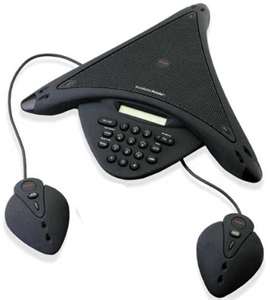
- IP SoundStation - speakerphone for a conference room. Includes additional speakers.
WisLine Audio
An audioconference service that allows conference participants to call in and allows more than five (5) participants. The cost is $.13 per minute/per site with the department paying all charges. If each participant is paying their own long distance charges, the cost is $.09 per minute/per site. To schedule a conference using the WisLine audioconference service:
WisLine Web
To schedule a conference using the WisLine Web webconferencing service:
WisLine Video
To schedule a conference using the WisLine videoconference service:
ICS Webcast Service
To schedule a webcast using the ICS Webcast service:
 Skip to main content
